License key
This functionality is available starting with Workflow Engine 9.0.0.
To obtain a key for earlier versions of Workflow Engine, please email the Sales Department at sales@optimajet.com.
Obtaining a license
The procedure for obtaining a license or trial key is simple and consists of the following steps:
-
You must install and run Workflow Engine. For information on how to start Workflow Engine, see this section of the documentation.
-
Get information about the installed copy through Workflow Designer:
-
Open Workflow Designer in your browser.
-
Select Menu -> Instance Info:
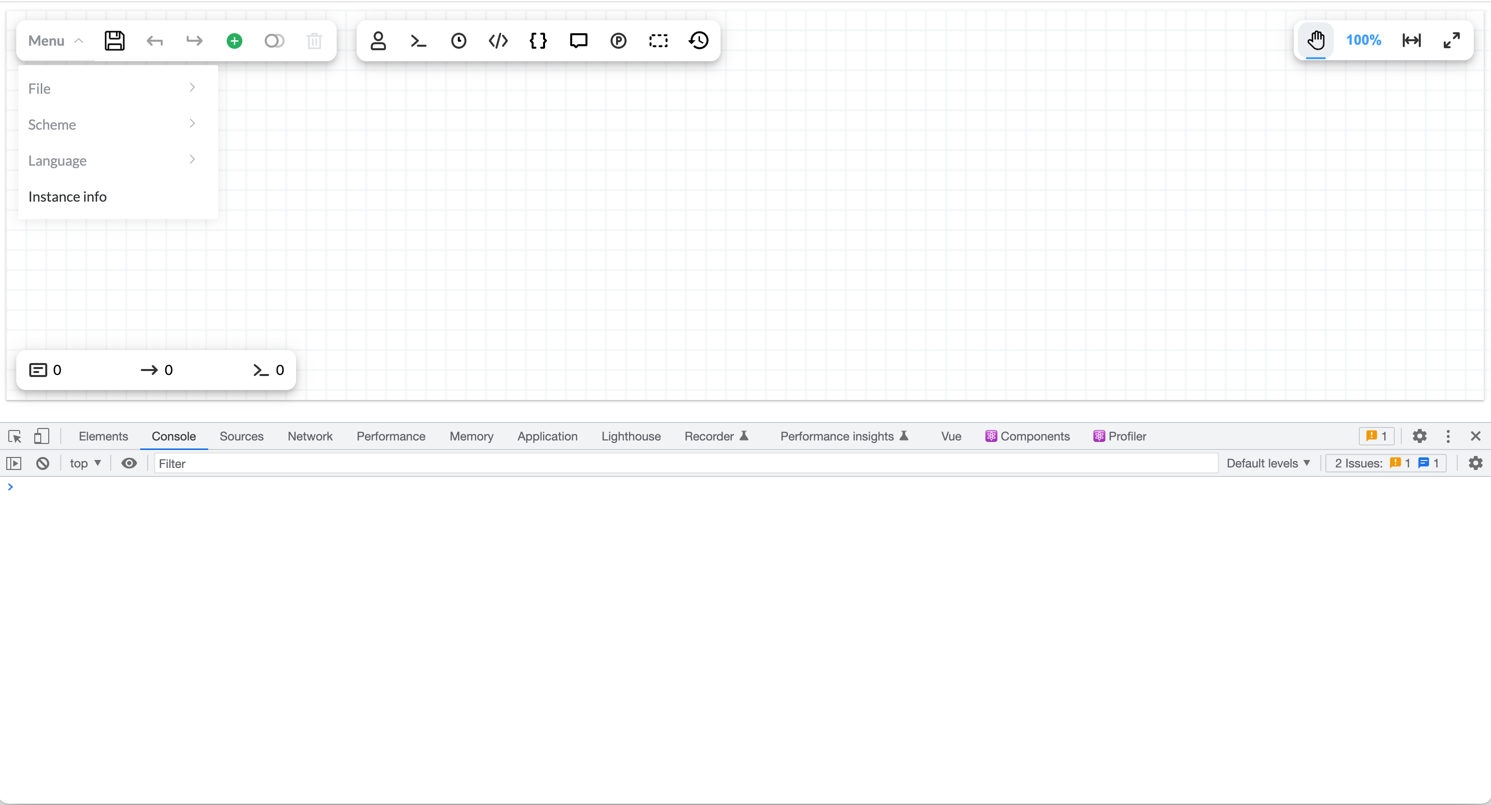
-
The information about the installed Workflow Engine will be copied to the clipboard (if your browser supports the clipboard feature) and displayed in the browser console:
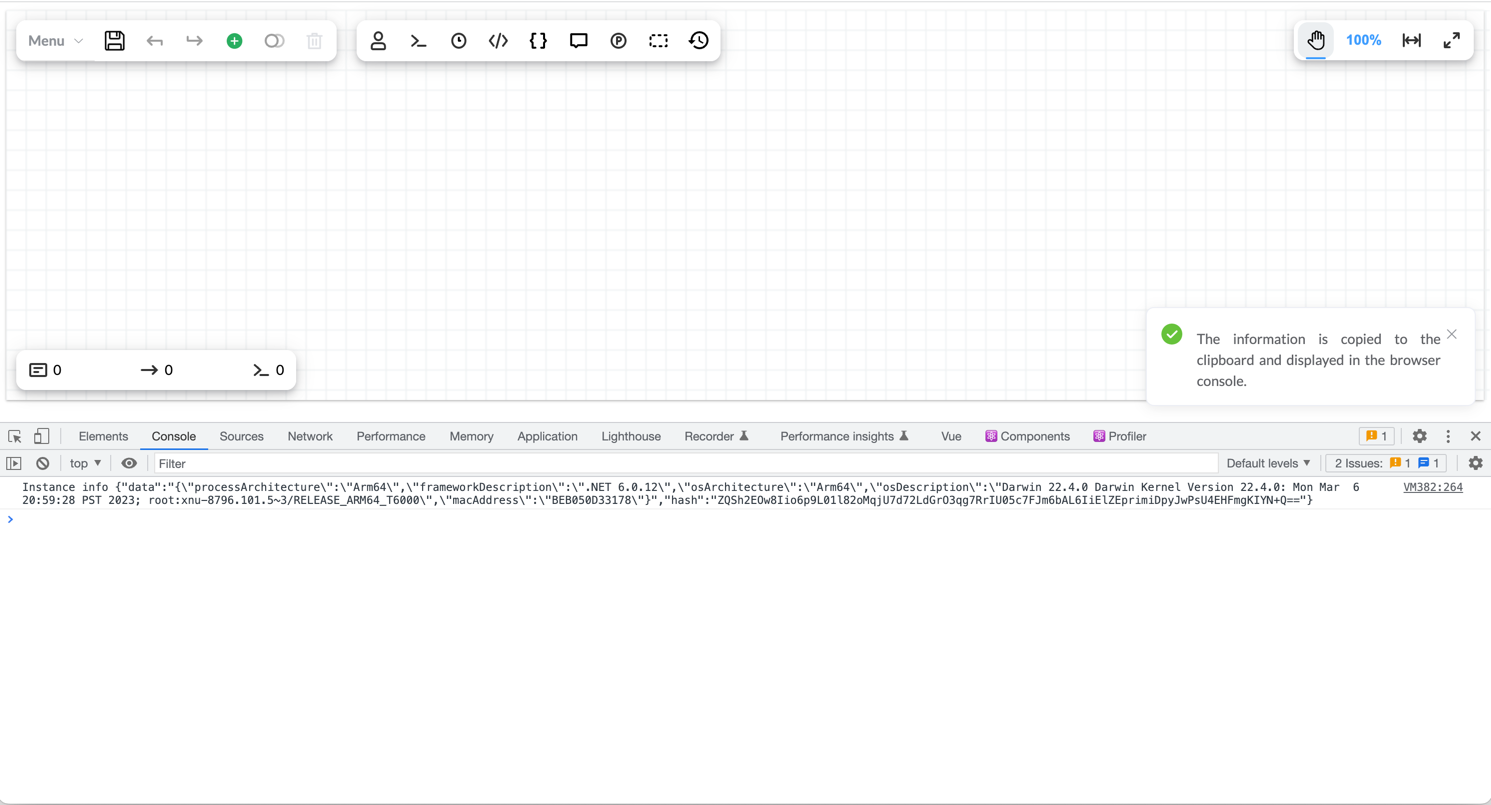
-
-
Send information about the installed copy of Workflow Engine from the clipboard or browser console to the Sales Department at sales@optimajet.com.
Example of information about a running Workflow Engine:
{"data": "{\"processArchitecture\":\"Arm64\",\"frameworkDescription\":\".NET 6.0.12\",\"osArchitecture\":\"Arm64\",\"osDescription\":\"Darwin 22.4.0 Darwin Kernel Version 22.4.0: Mon Mar 6 20:59:28 PST 2023; root:xnu-8796.101.5~3/RELEASE_ARM64_T6000\",\"macAddress\":\"BEB050D33178\"}","hash": "ZQSh2EOw8Iio6p9L01l82oMqjU7d72LdGrO3qg7RrIU05c7FJm6bAL6IiElZEprimiDpyJwPsU4EHFmgKIYN+Q=="}
Obtaining a trial key via an AI agent
You can also obtain a trial key through an AI agent (such as Claude, Codex, GitHub Copilot, Cursor, or
other LLM-based coding assistants). To do so, provide the agent with the contents of the
following files from trial.workflowengine.io:
- llms.txt — an overview of the trial key generation process and available options.
- llms-full.txt — a detailed guide for AI agents covering the complete trial key generation flow, step-by-step instructions, and all required parameters.
The agent will use these documents to guide you through obtaining a trial key without manually contacting support.
Registering a license key in Workflow Engine
How you register the license key depends on how you integrate Workflow Engine into your application.
Workflow Engine Core
If you use Workflow Engine Core directly and create WorkflowRuntime manually, register the license key before starting Workflow Engine:
WorkflowRuntime.RegisterLicense("your license key text");
Workflow Engine Web API
If you use Workflow Engine Web API, set the license key in WorkflowApiCoreOptions when configuring services in Program.cs:
builder.Services.AddWorkflowApiCore(SetupWorkflowApiCore);

void SetupWorkflowApiCore(WorkflowApiCoreOptions options)
{
    options.LicenseKey = "Put your license key here";
}